Sheets with steps Borders by subject
Computer Border Design for Projects, Files and Front Pages
Computer border design ideas for projects: keyboard keys, circuit lines, pixels, device icons and a front page frame, each with repeat size, pens and time.
- 6sheets
- 4facts per card: pattern, tools, skill, time
- 23 Novlast checked

A computer border design works when the motif is a shape everyone links with computers: a key, a circuit track, a pixel square, a mouse. Each of these is made of straight lines and simple curves, so your ruler carries most of the effort.
Here are six borders, three simple ones for inside pages and three decorative ones for covers. Each card gives the repeat size, the pens, the level and the time, so the pattern meets cleanly at every corner of an A4 sheet.
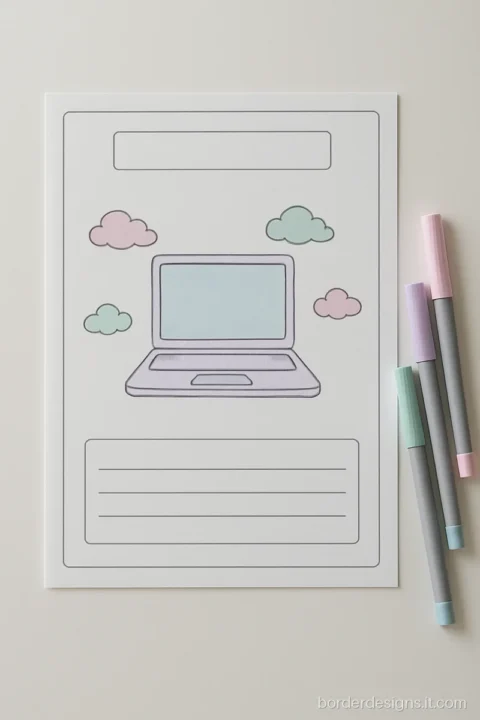
For a full cover layout with a title box and details, see the computer front page designs.
All 6 sheets at a glance
01Simple Computer Border Design for Inside Pages
These three take 15 to 30 minutes each and can be repeated on every page of a practical file or assignment.

Blank key row
Grey and blue sketch pens, ruler
- SkillEasy, class 4 plus
- Time30 minutes
A single row of rounded square keys around the page is the most recognisable computer frame. Grey keys with a blue shadow look clean in any class.
How to draw it: 4 steps
- Outer guide: 1 cm inside the paper edge; inner guide: 1.3 cm beyond that.
- Mark one key every 1.6 cm; that gives about 17 keys on a long side.
- Round each key corner with a small curve, never a sharp angle.
- Draw a thin blue shadow on the right and bottom of every key.
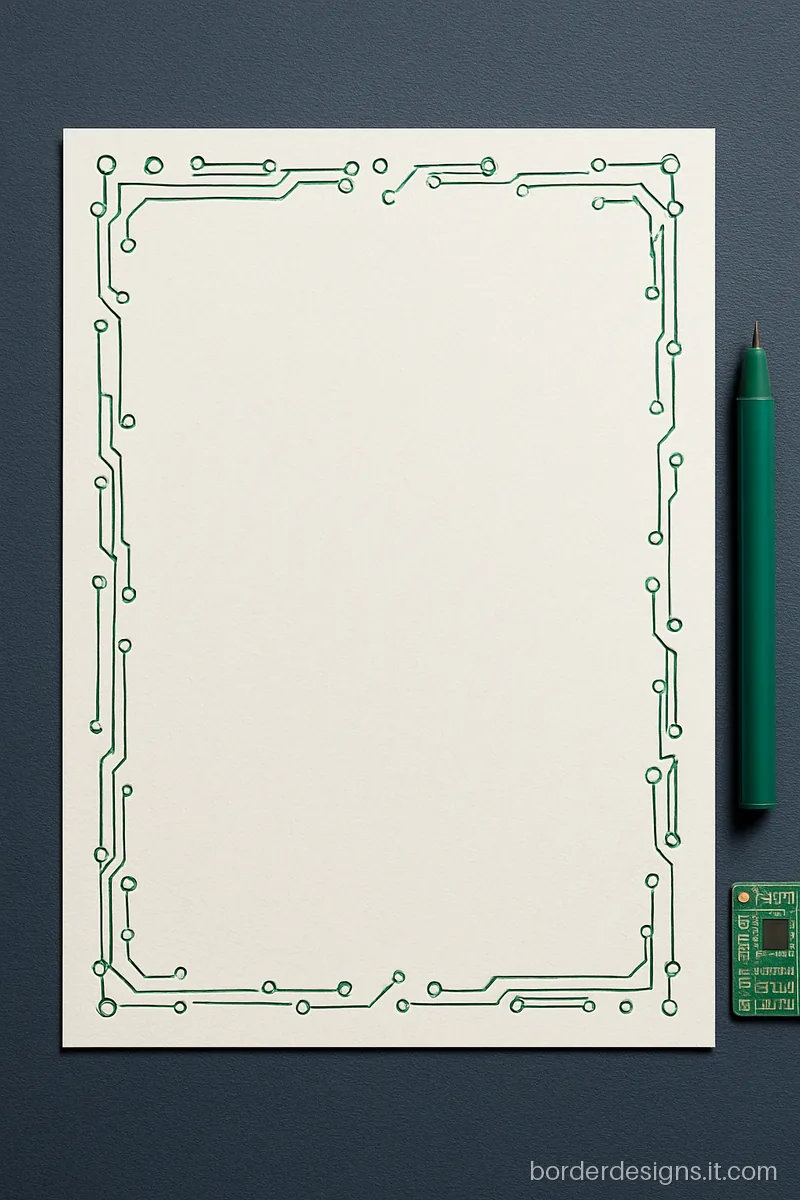
Circuit tracks, dot nodes
Green fineliner, 0.5 mm black pen
- SkillEasy, class 6 plus
- Time25 minutes
Thin tracks bending squarely and finishing in tiny rings copy the look of a circuit board. It suits computer, electronics and robotics projects.
How to draw it: 4 steps
- Rule the main track 1.5 cm in from the edge all round.
- Every 3 cm, branch a short track inward and end it in a 3 mm circle.
- Turn tracks only at right angles or 45 degrees, never curves.
- Fill every other circle solid so the frame has rhythm.

Stepped pixel squares
Blue, purple and teal sketch pens
- SkillVery easy
- Time20 minutes
Small filled squares stepping in and out along the edge look like a screen up close. Use graph paper below the sheet or a ruler to keep them even.
How to draw it: 4 steps
- Make each pixel a 5 mm square, drawn along a pencil grid.
- Stack pixels two or three high in a repeating step pattern.
- Colour in the order blue, purple, teal all the way round.
- Keep the band under 2 cm so the page still holds writing.
02Decorative Computer Border Design and Front Page Frames
For a cover, a decorative computer border design can carry more detail. These three suit a border computer project front page design where the frame is the main decoration.

Device icon chain
Navy and sky blue sketch pens
- SkillMedium
- Time45 minutes
Small device icons linked by a thin line make a lively cover frame. Repeat four icons in the same order so it looks planned.
How to draw it: 4 steps
- Use four icons in order: monitor, mouse, cloud, signal waves.
- Keep every icon inside a 2 cm square so sizes match.
- Place one monitor at each corner as the anchor.
- Join the icons with a thin sky blue line along the middle.
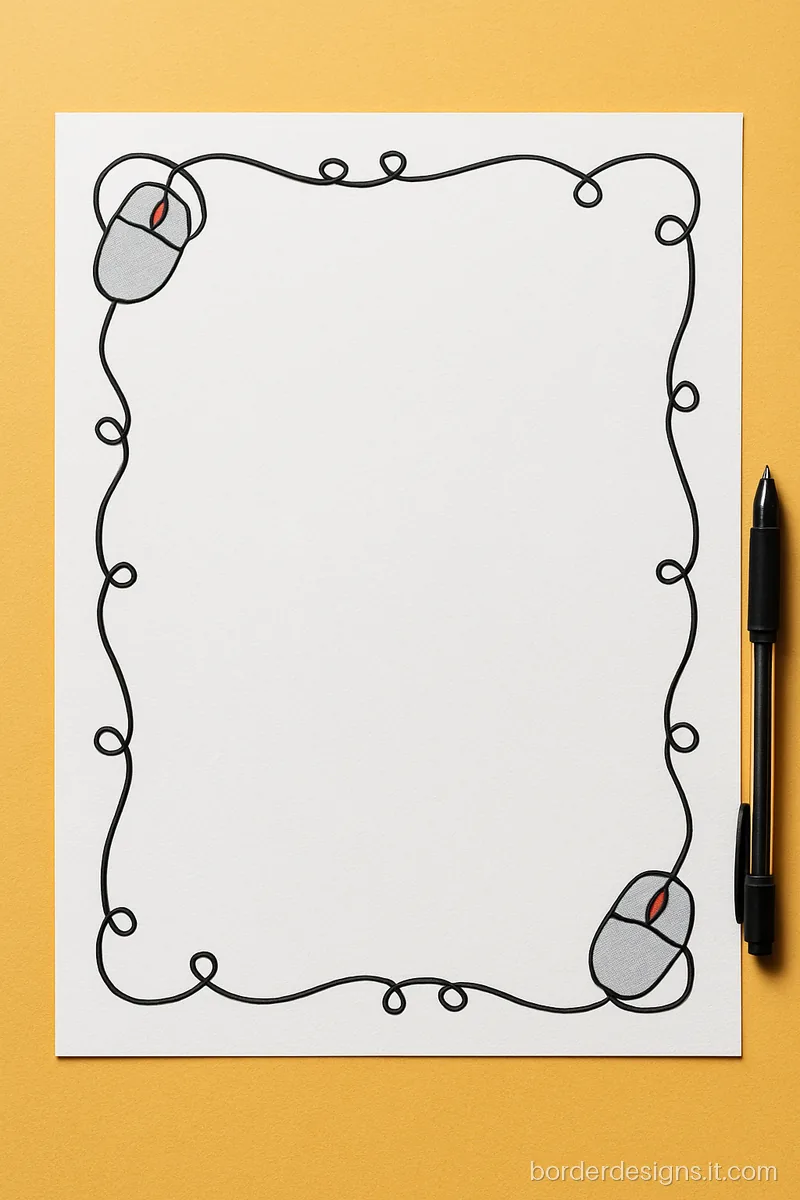
Curling cable, corner mice
Black gel pen, grey and red pens
- SkillEasy, class 3 plus
- Time30 minutes
A wavy mouse cable winding round the page with a mouse in two opposite corners is playful but tidy. It suits classes 3 to 7 computer notebooks.
How to draw it: 4 steps
- Draw the mice 4 cm long in the top left and bottom right corners.
- Let the cable wave once every 3 cm along a pencil guide.
- Add a small loop in the cable halfway along each long side.
- Colour the mouse buttons red and the body light grey.
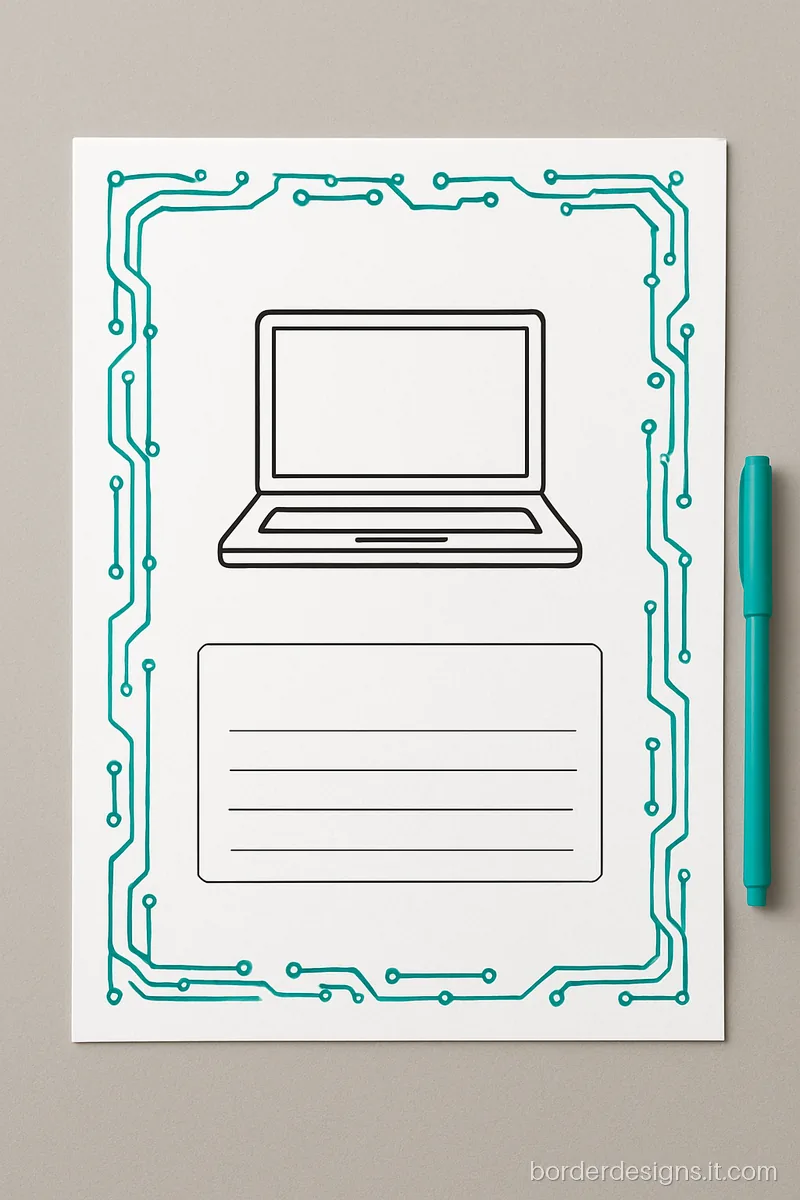
Circuit frame, laptop box
Teal fineliner, black 0.5 mm pen
- SkillMedium
- Time50 minutes
A circuit frame around the edge and a laptop outline in the middle, its screen kept empty for the title, give a full cover in under an hour.
How to draw it: 4 steps
- Draw the laptop 12 cm wide with the screen 8 cm tall.
- Run circuit tracks from the frame to the laptop corners.
- Put a ruled details box 5 cm tall below the laptop.
- Use teal for the frame and black only for the laptop.
How to Draw a Computer Border Design Evenly
- Pencil a faint guide line all round the A4 sheet, set back from each edge by roughly a centimetre, or a little more.
- Decide the band width. Keys and pixels look best at 1.2 to 1.5 cm; icon chains need about 2 cm.
- Draw the corner piece first, such as a big key, a monitor or a circuit node.
- Measure the space left on each side and divide it into equal units. If 1.6 cm does not fit, try 1.5 or 1.7 cm.
- Go over it in fineliner. Once the ink has set, rub away the pencil and add colour.
| Border | Unit | Best pen | Time |
|---|---|---|---|
| Key row | 1.6 cm key | Grey sketch pen | 30 minutes |
| Circuit tracks | 3 cm branch | Green fineliner | 25 minutes |
| Pixel steps | 5 mm square | Sketch pens | 20 minutes |
| Icon chain | 2 cm icon | Navy sketch pen | 45 minutes |
Using These Borders Across a Computer File
Use one decorative border on the cover and a simple one on every program or practical page. Circuit tracks or keys repeat fastest. Keep the same two colours on all pages. For other subjects in the same file set, try the maths border designs, science border designs, Hindi border designs and history border designs. For general frames, see border designs for projects.
Questions students ask
What is a simple computer border design?
A row of blank keyboard keys or a circuit track border. Both need a ruler and one or two pens and take about 25 to 30 minutes on A4.
Which border design for computer project covers looks best?
A decorative icon chain or a circuit frame with a laptop title box. They show the subject clearly and leave room for the title and details.
How do I make the keys fit evenly at the corners?
Draw a corner key first, then measure each side and divide it into equal units close to 1.6 cm. Adjust the unit slightly rather than squeezing the last key.
Can I add code or binary digits to the border?
It is better to keep the border free of writing. Shapes like keys, tracks and pixels read as computers without cluttering the page.
What colours suit a computer border?
Blue, grey, teal and green with black outlines. Two colours plus black is enough for a clean, technical look.